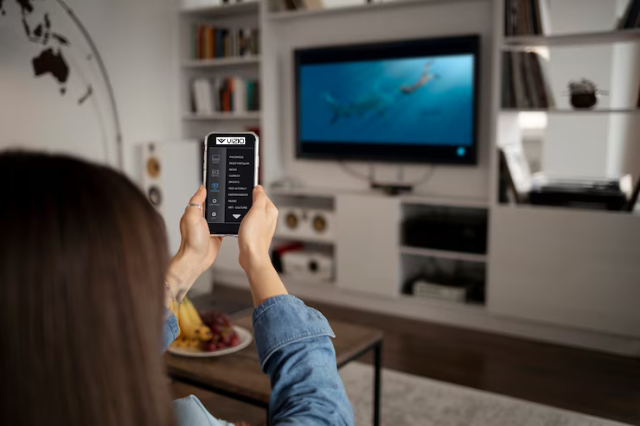
Just unboxed your brand-new Vizio Smart TV? Great choice! Vizio has become one of the top names in smart home entertainment, offering sleek displays, built-in SmartCast features, and unbeatable value. But before you dive into movies, sports, or binge-worthy shows, you’ll need to complete the Vizio TV setup process.
This step-by-step guide walks you through everything you need to know—from unboxing your Vizio TV to connecting it with Wi-Fi, activating SmartCast, and customizing your settings for the best viewing experience.
What Makes Vizio TVs Stand Out?
Before we dive into the setup, it’s worth highlighting what makes Vizio Smart TVs a fan favorite:
✅ Built-in SmartCast platform with apps like Netflix, Disney+, Hulu, YouTube, and more
✅ Support for Google Chromecast and Apple AirPlay 2
✅ Compatibility with voice assistants (Alexa, Google Assistant, Siri)
✅ Regular firmware updates and seamless integration with mobile apps
Now, let’s get you started with your setup process.
Step-by-Step Vizio TV Setup Guide
1. Unbox and Assemble Your Vizio TV
Carefully remove your TV and accessories from the box.
Attach the stand or mount it to the wall using a compatible bracket.
Connect the power cable, but do not turn it on just yet.
2. Connect Devices (Optional)
If you’re using a cable box, Blu-ray player, gaming console, or soundbar, plug them into the appropriate HDMI ports.
You can always connect these later, but doing it now saves you from repeating the setup.
3. Power On the TV
Press the power button on the remote or the TV.
The Vizio logo should appear, followed by a welcome screen.
Select your language and region from the on-screen menu.
4. Connect to Wi-Fi
Your TV will prompt you to choose a Wi-Fi network.
Enter your password using the on-screen keyboard.
A stable internet connection is crucial for downloading apps and firmware updates.
5. Start the On-Screen Setup
Once online, your TV will check for software updates.
Allow it to install updates if prompted. This process may take a few minutes.
You’ll then be guided through various personalization settings like display mode, audio preferences, and app login.
6. Activate Your Vizio TV
Visit www.vizio.com/setup on your phone or computer.
Enter the activation code displayed on your TV screen.
Create or sign in to your Vizio account to complete the process.
7. Download the Vizio SmartCast App
For better control and functionality, download the SmartCast Mobile App from the Apple App Store or Google Play.
The app can be used as a remote, to cast media, and to manage settings more easily.
Customize for the Best Experience
📺 Picture Settings
Go to Menu > Picture to adjust brightness, contrast, sharpness, and color.
Choose a mode that fits your room, like “Movie” for low light or “Vivid” for daylight viewing.
🔊 Sound Settings
Navigate to Menu > Audio to adjust bass, treble, and surround sound.
Connect a Vizio Soundbar via HDMI ARC or optical cable for better sound performance.
🗣️ Voice Assistant Setup
If you want to control your TV with voice commands, enable Alexa, Google Assistant, or Siri through Menu > Extras > Voice Control.
📱 Casting Features
Use Apple AirPlay or Google Chromecast to cast videos, music, or photos directly from your smartphone or tablet.
SmartCast Essentials: Streaming Made Simple
Your Vizio TV comes with SmartCast, a platform that brings streaming apps right to your screen without needing a separate device.
Popular built-in apps include:
Netflix
Amazon Prime Video
Disney+
Hulu
YouTube
Apple TV
Peacock
Tubi and more
Navigate through the SmartCast Home menu using your remote or SmartCast app. You can also reorder and hide apps based on your preferences.
Troubleshooting Common Setup Issues
Issue: The TV won’t connect to Wi-Fi
Solution: Restart your router and TV. Make sure you're entering the correct password.
Issue: Remote is not responding
Solution: Replace the batteries or use the SmartCast app as a temporary remote.
Issue: Activation code not showing
Solution: Restart the TV, ensure the internet is connected, and reload the setup page.
Issue: No sound or distorted audio
Solution: Check audio settings, change output source, or try a different HDMI cable.
Tips for Ongoing Performance
Regularly check for software updates in Menu > System > Check for Updates
Use Eco Mode for power savings when the TV is idle
Enable Game Mode for reduced input lag during gaming
Save your picture and audio presets under custom modes
Why Proper Setup Matters
A correctly configured Vizio Smart TV unlocks its full potential. With just a few simple steps, you’re not only making your viewing experience smoother, but also:
Ensuring better video and audio performance
Gaining access to hundreds of free and premium channels
Enhancing control through apps and voice assistants
Making your home theater smarter and more convenient
Conclusion
Setting up your Vizio Smart TV doesn’t have to be complicated. This guide is designed to help users of all experience levels get started quickly and confidently.
From connecting your devices to activating SmartCast and fine-tuning your settings, following the Vizio TV Setup Guide ensures a seamless, personalized entertainment journey. So, sit back, grab the remote—or your smartphone—and start streaming the smarter way with Vizio.
Need Help?
Visit Tech Nova for support if you run into any issues during or after setup.